

TGIANN
STORE
STORE
EUR
14.99
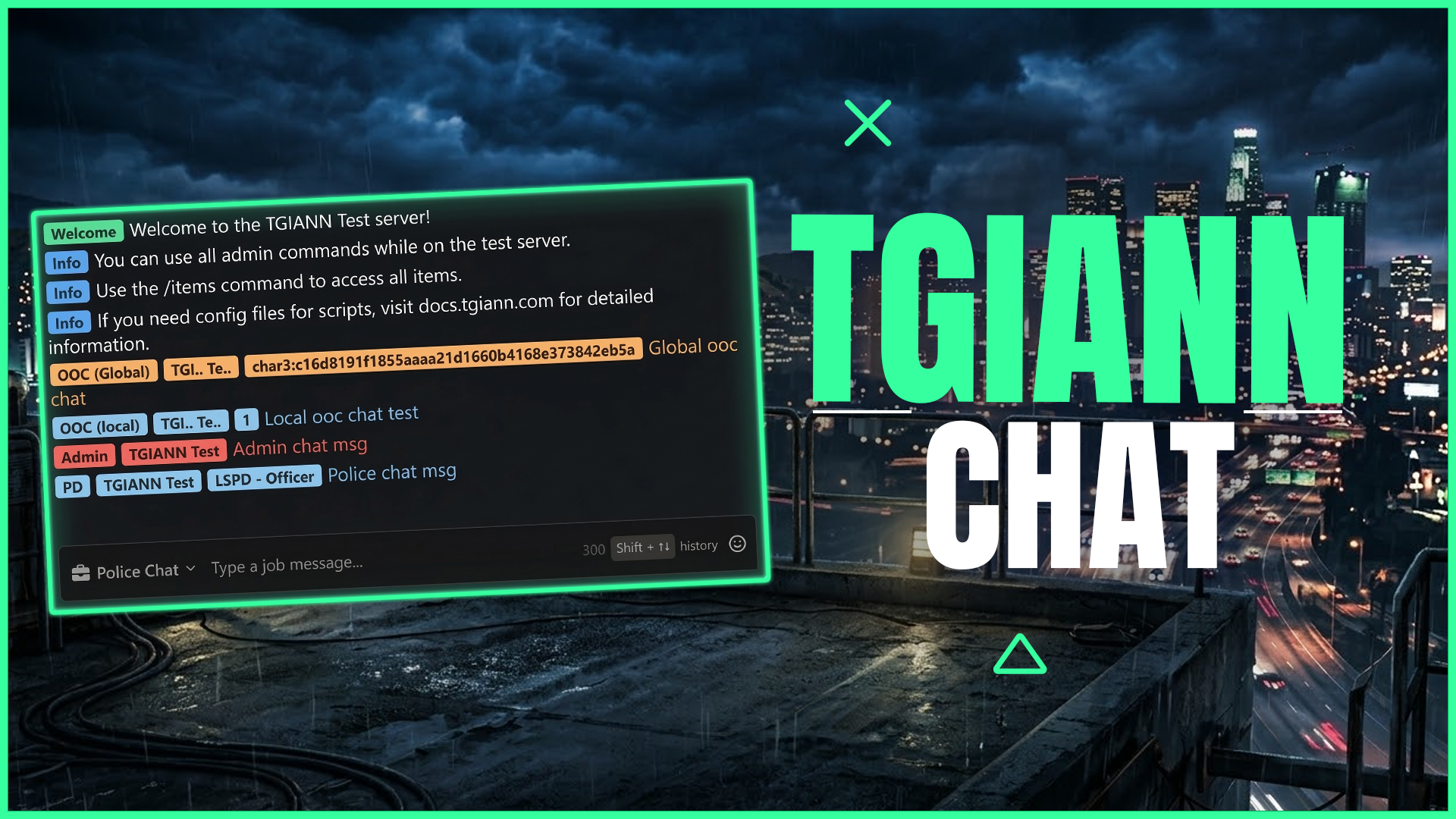
Advanced Chat
Get the most advanced FiveM chat script! Features custom job/admin channels, Discord sync, proximity OOC, typing indicators, and fully customizable RP commands.
Escrow
ESX
QB-Core
QBOX
Standalone
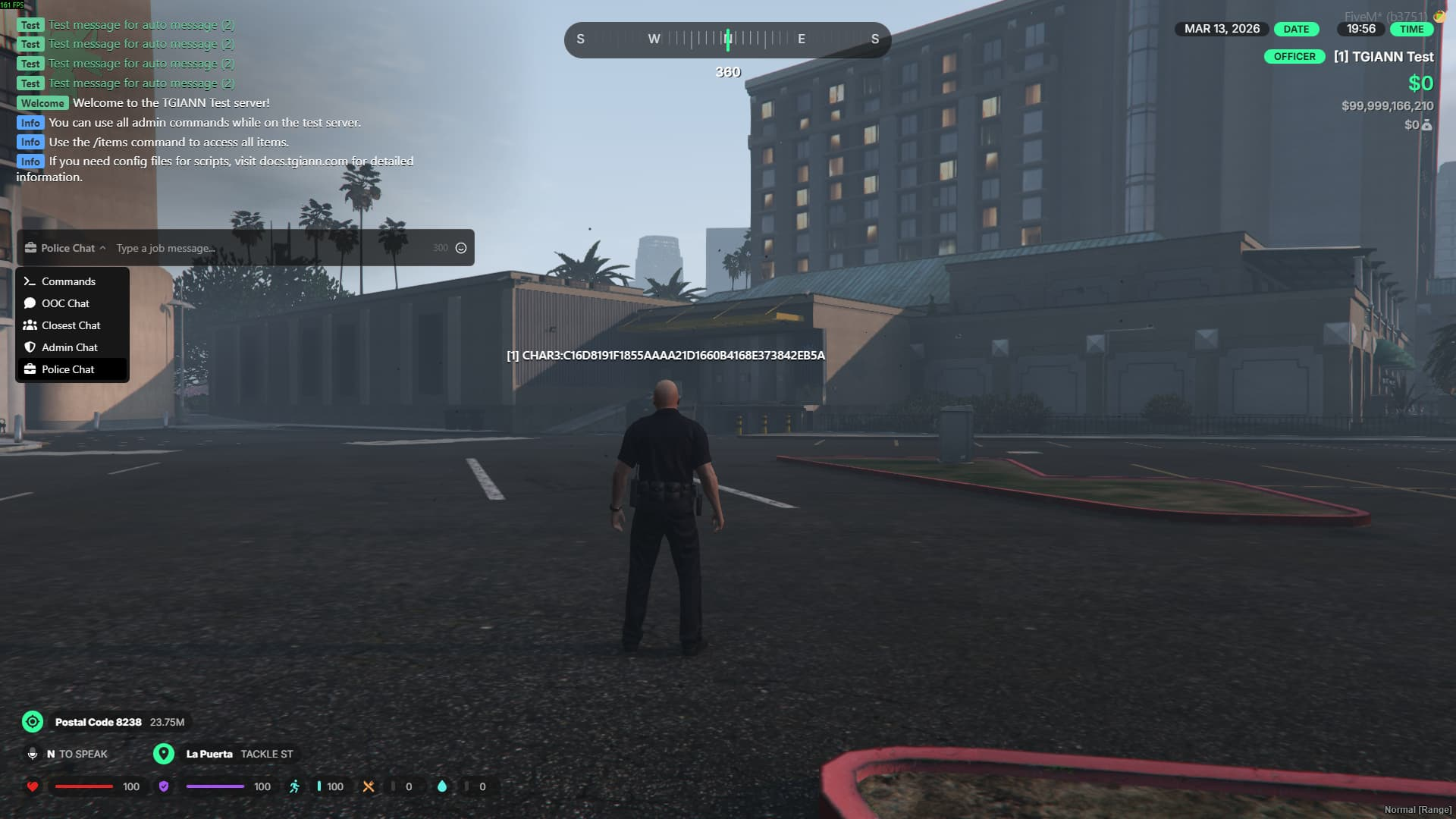
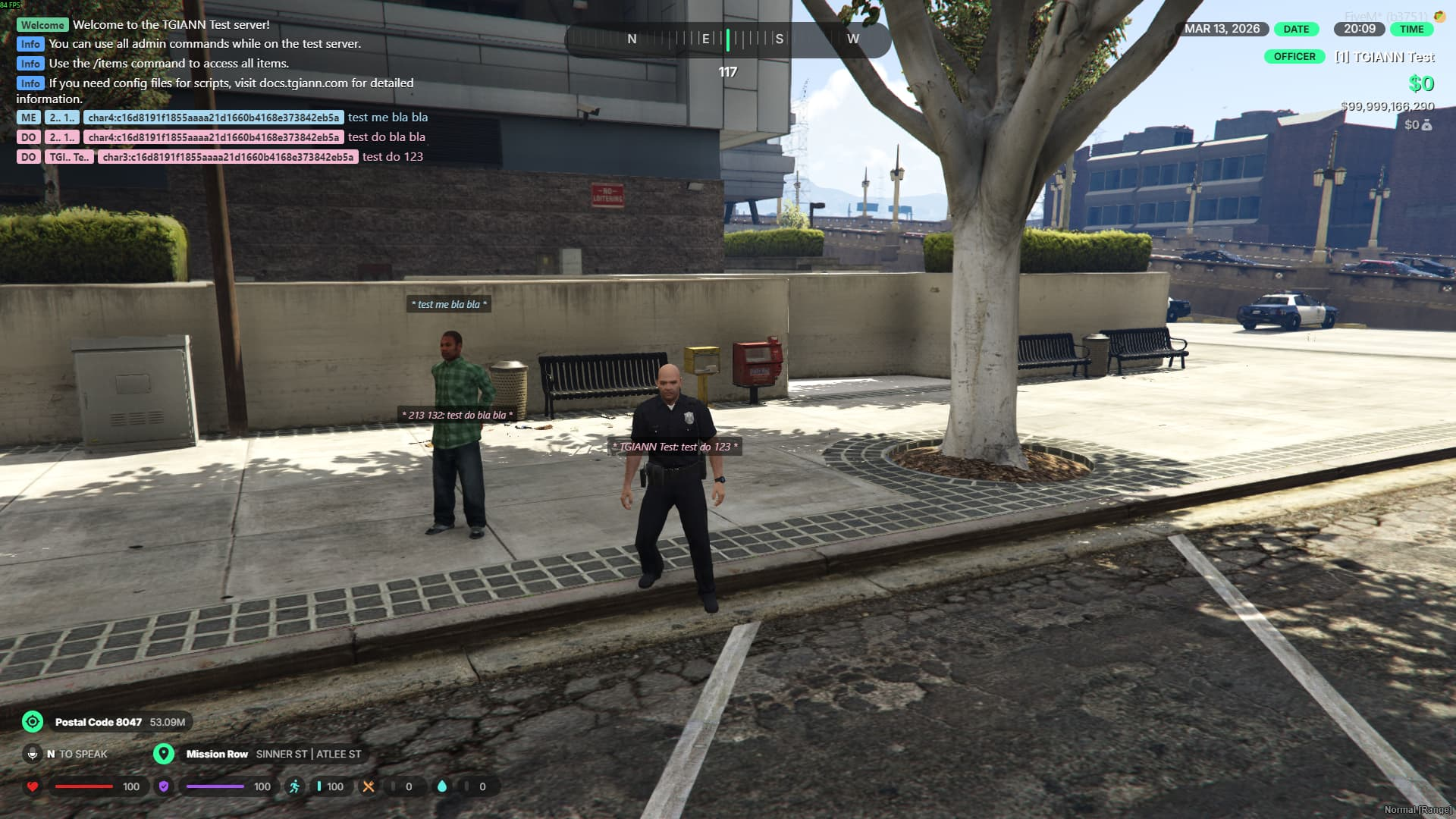
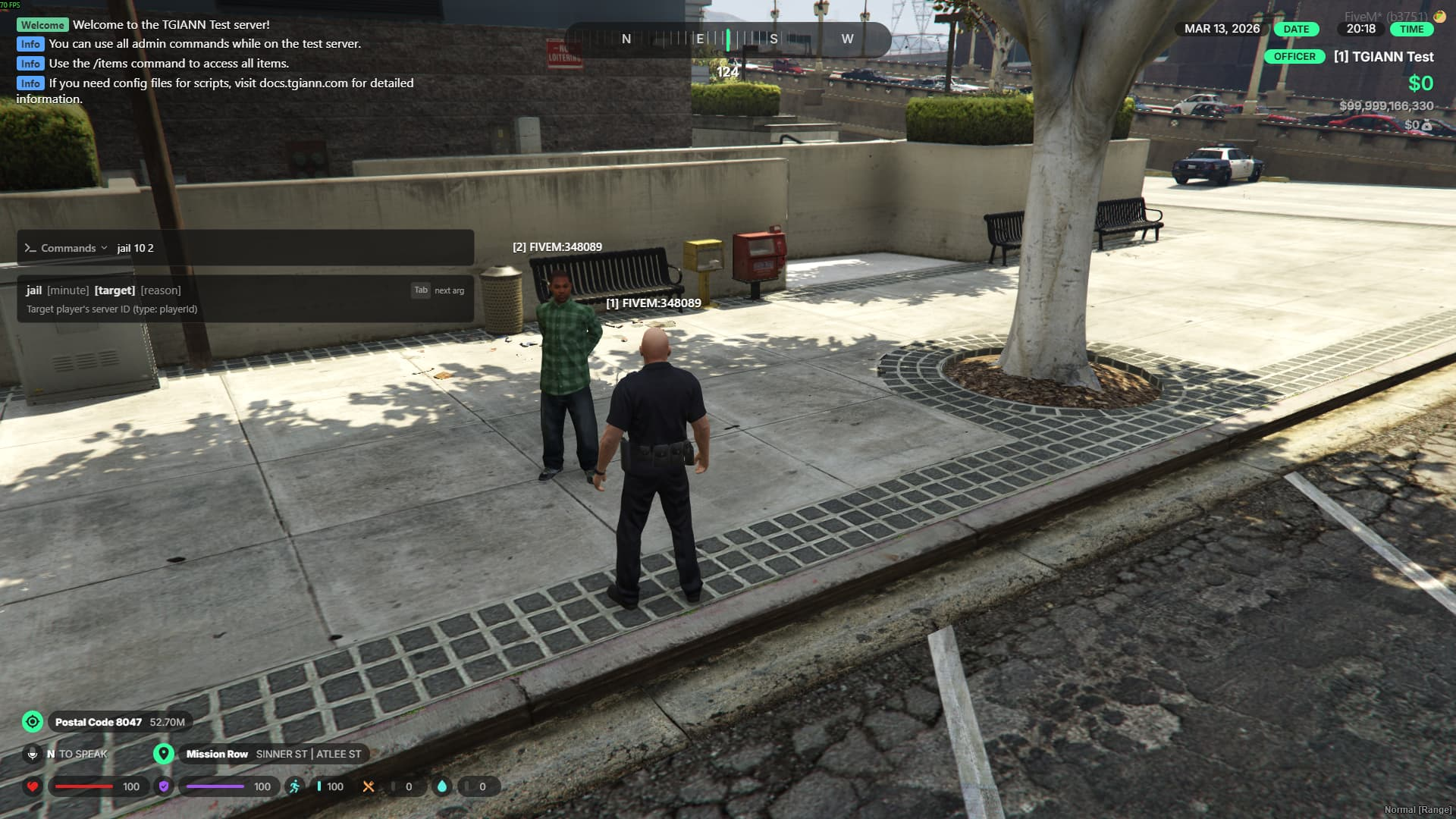
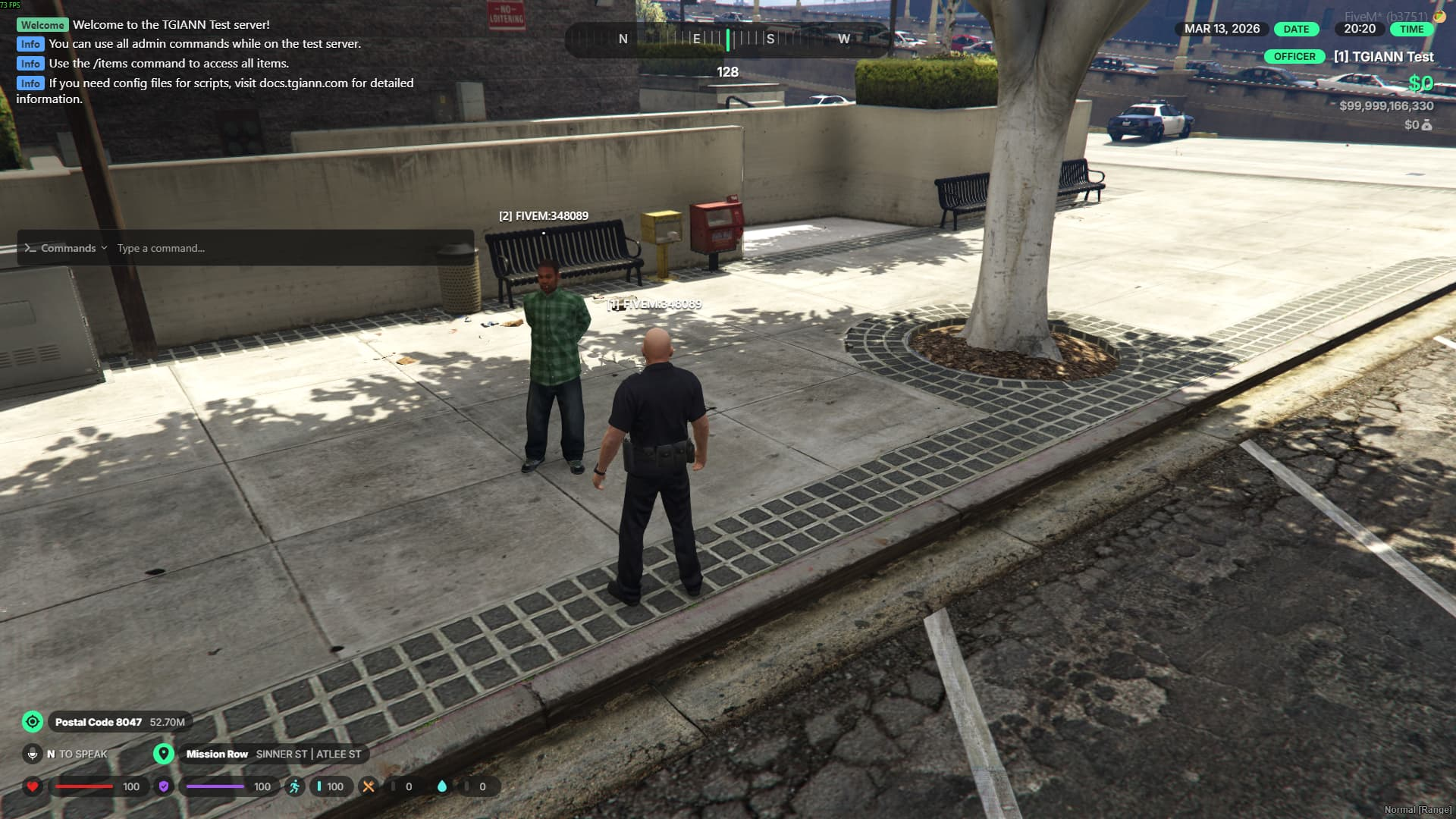
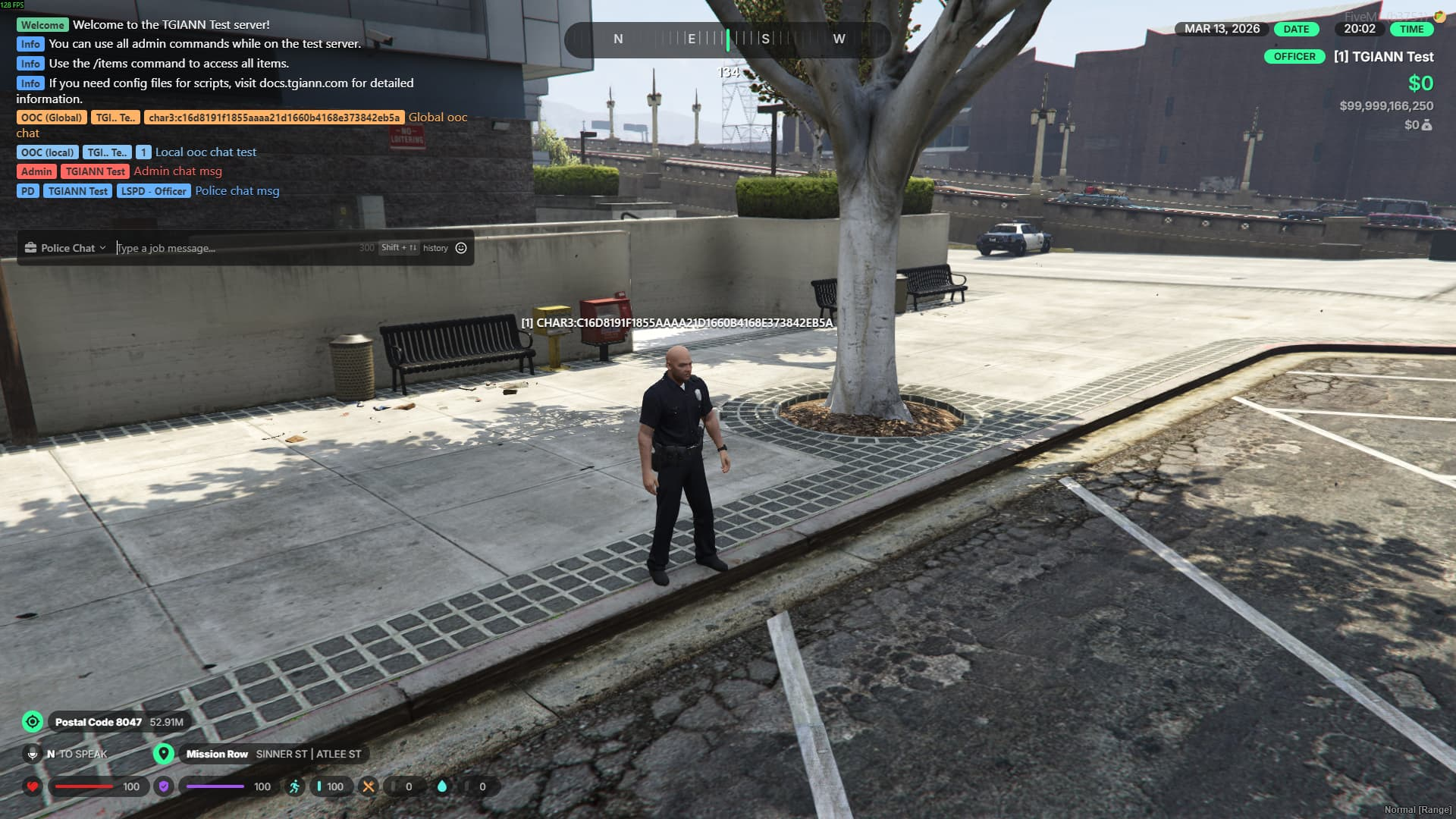
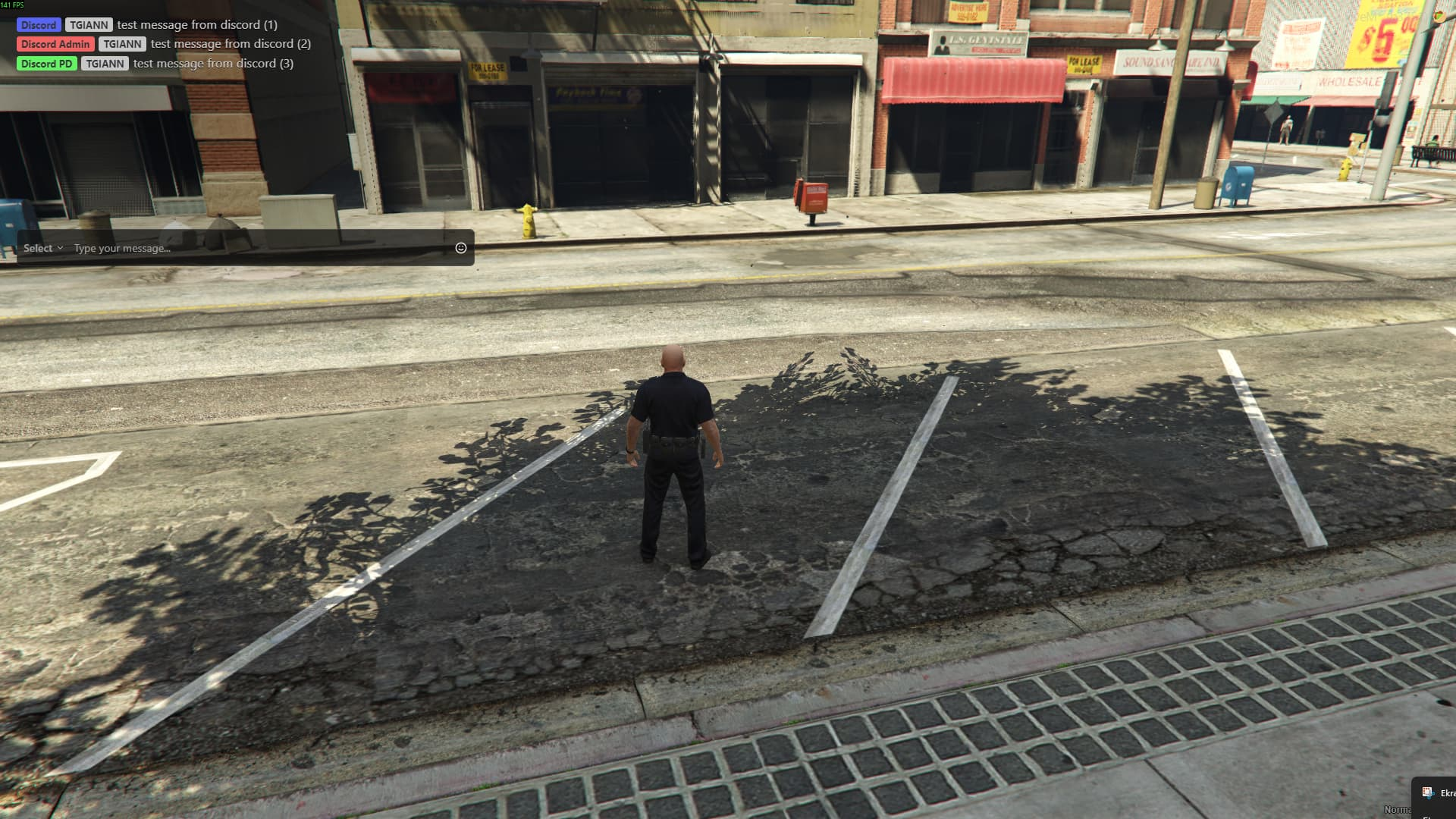
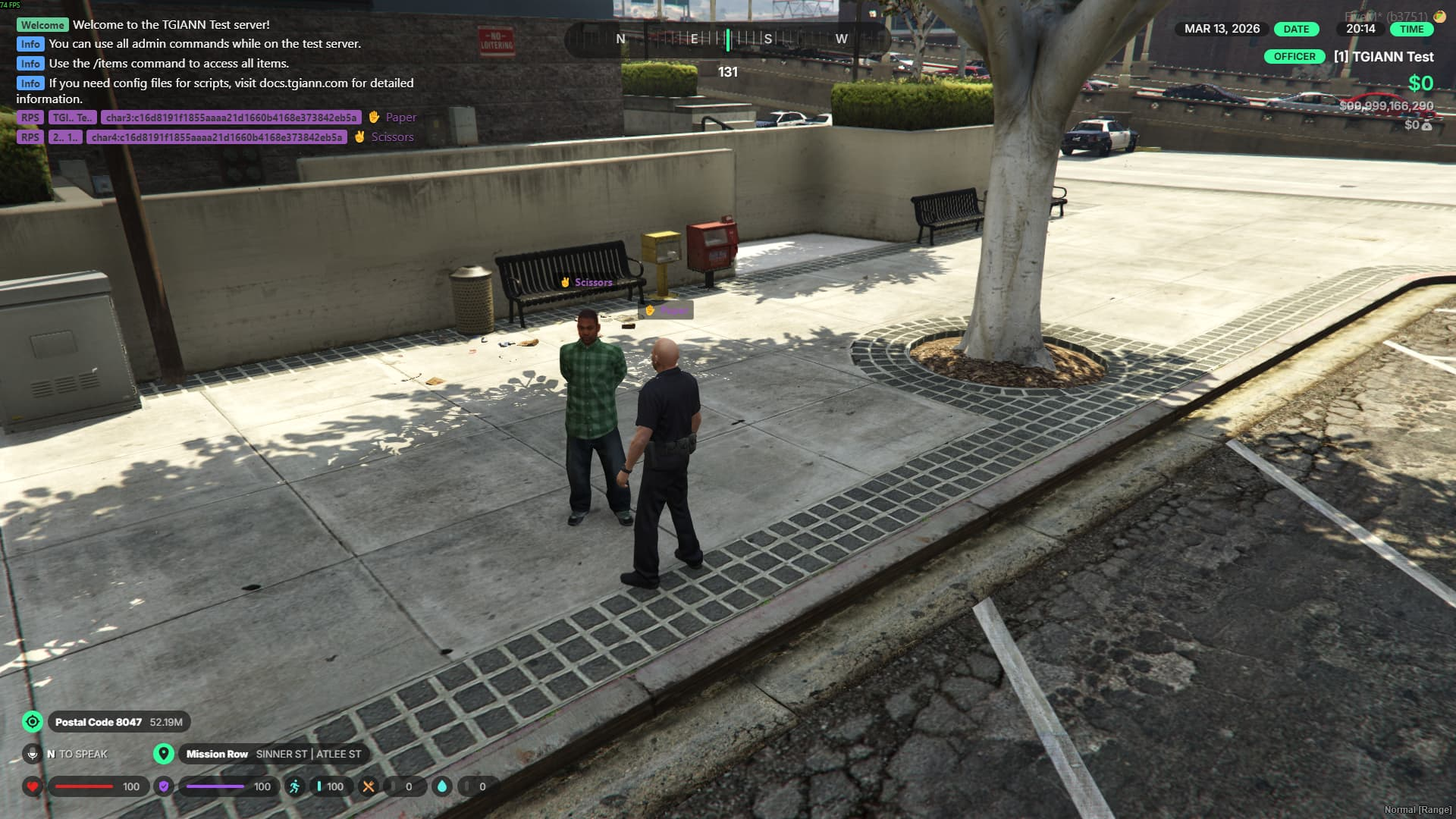
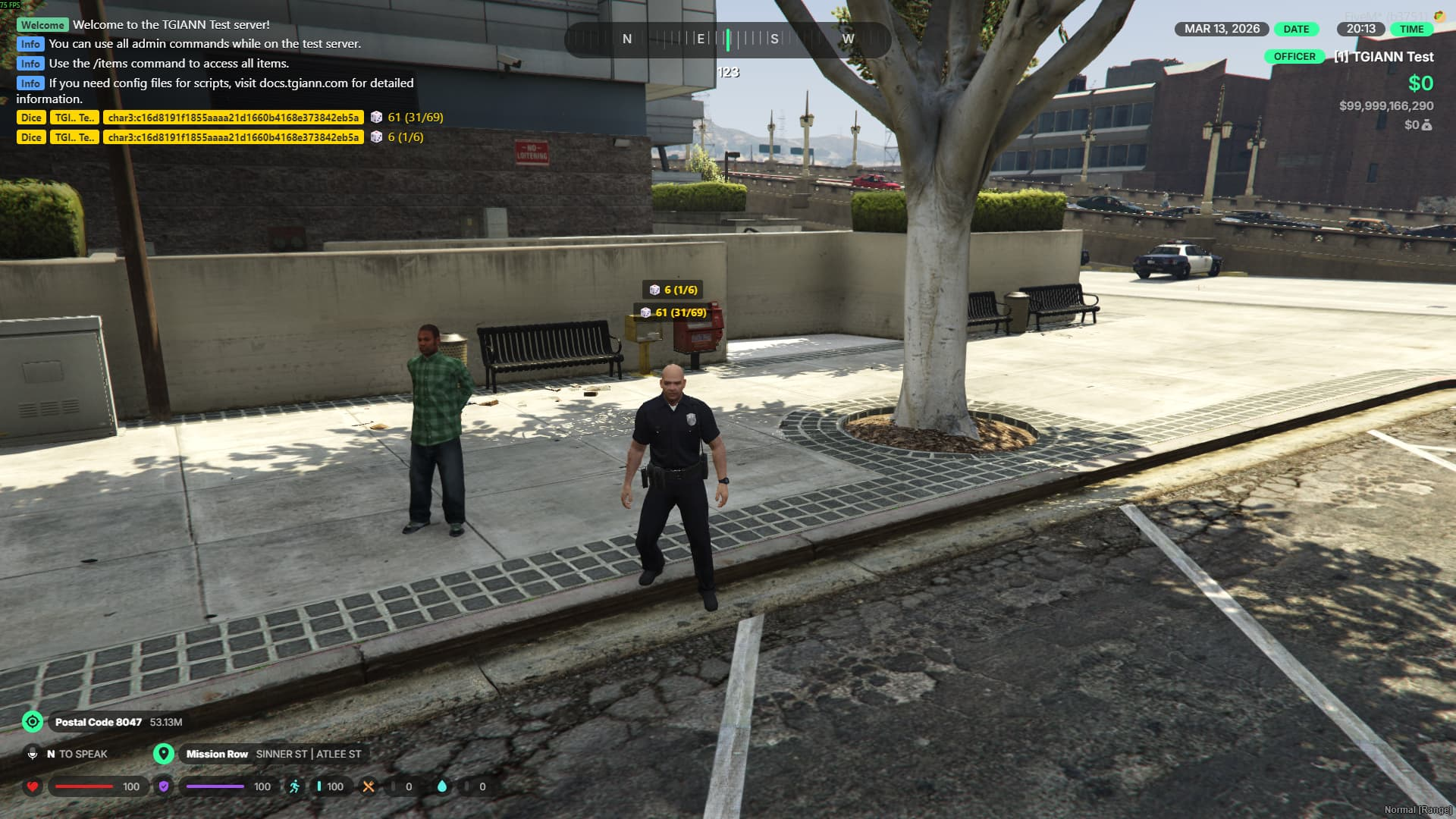
Advanced Chat System Features
- Fully customizable via config files.
- Chat visibility settings: You can set the chat to be always visible, show only when a new message arrives, or hide it completely.
- Dedicated chat channels for specific jobs and admins.
- Support for both Global OOC and Proximity (Closest) OOC chat.
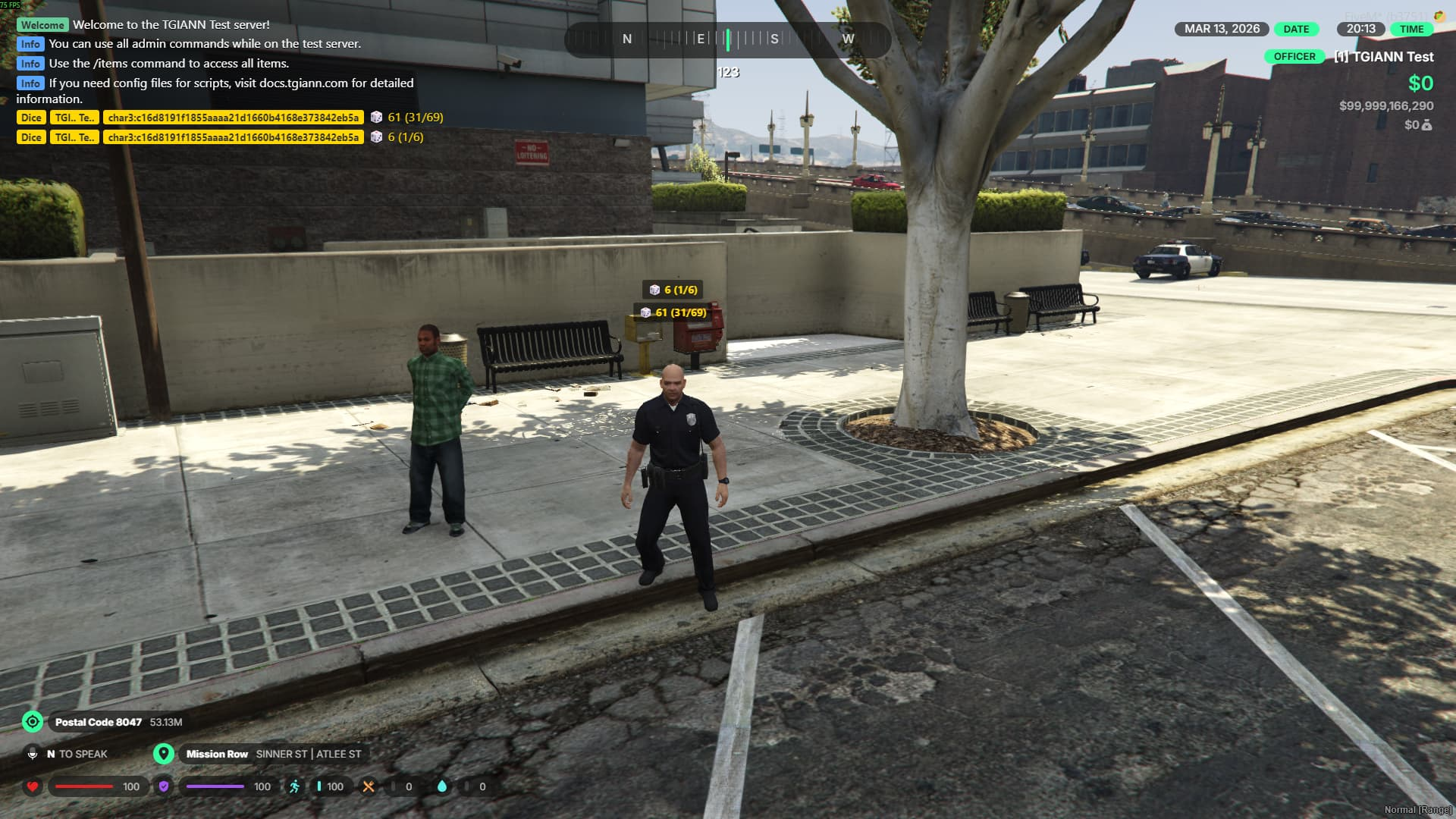
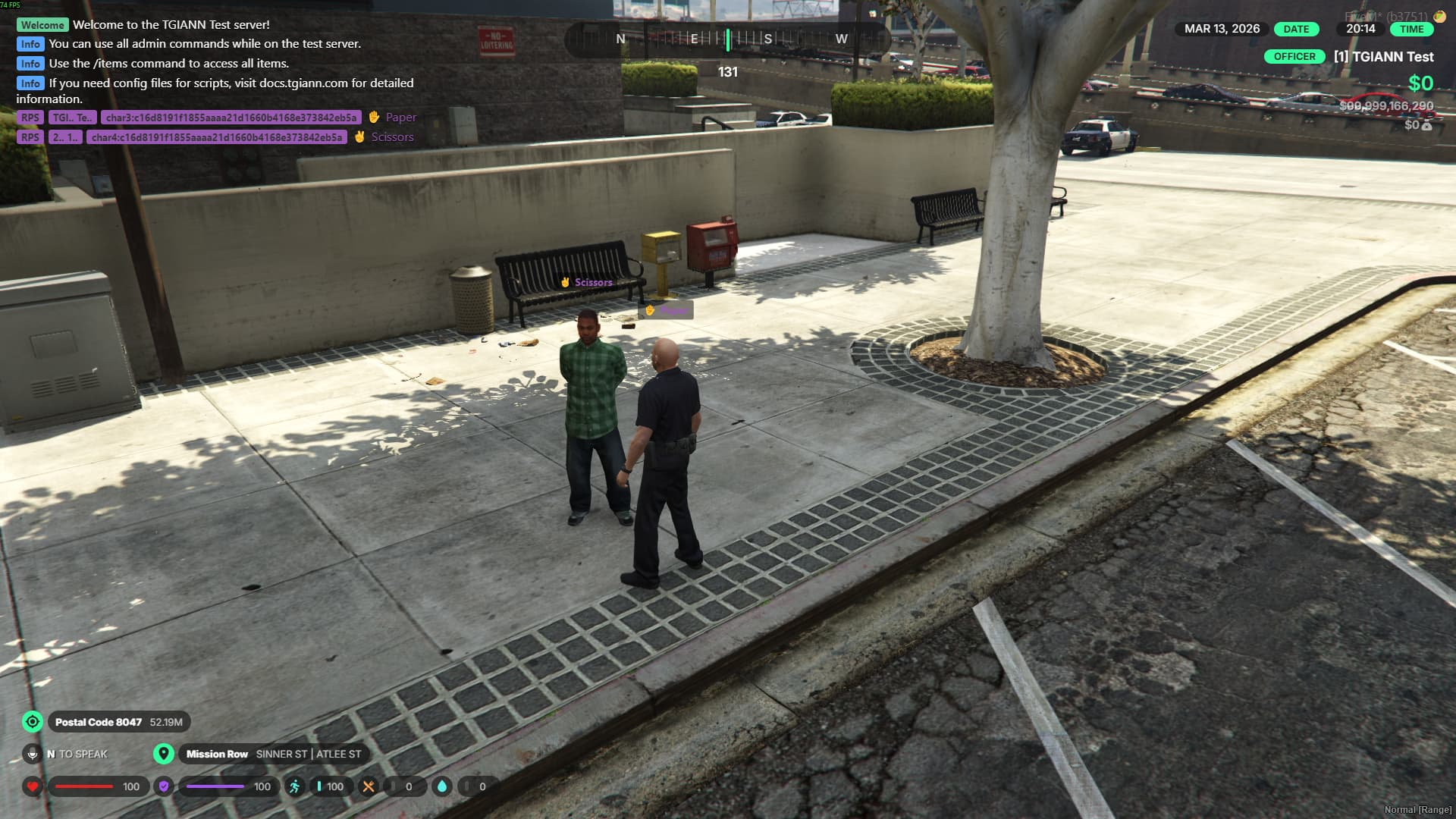
- Built-in /dice and /rps (Rock, Paper, Scissors) commands.
- Standard roleplay commands included: /me and /do.
- Ability to route Discord channel messages directly to the in-game chat.
- Automated announcements sent at configured time intervals.
- Customizable welcome message for players joining the server.
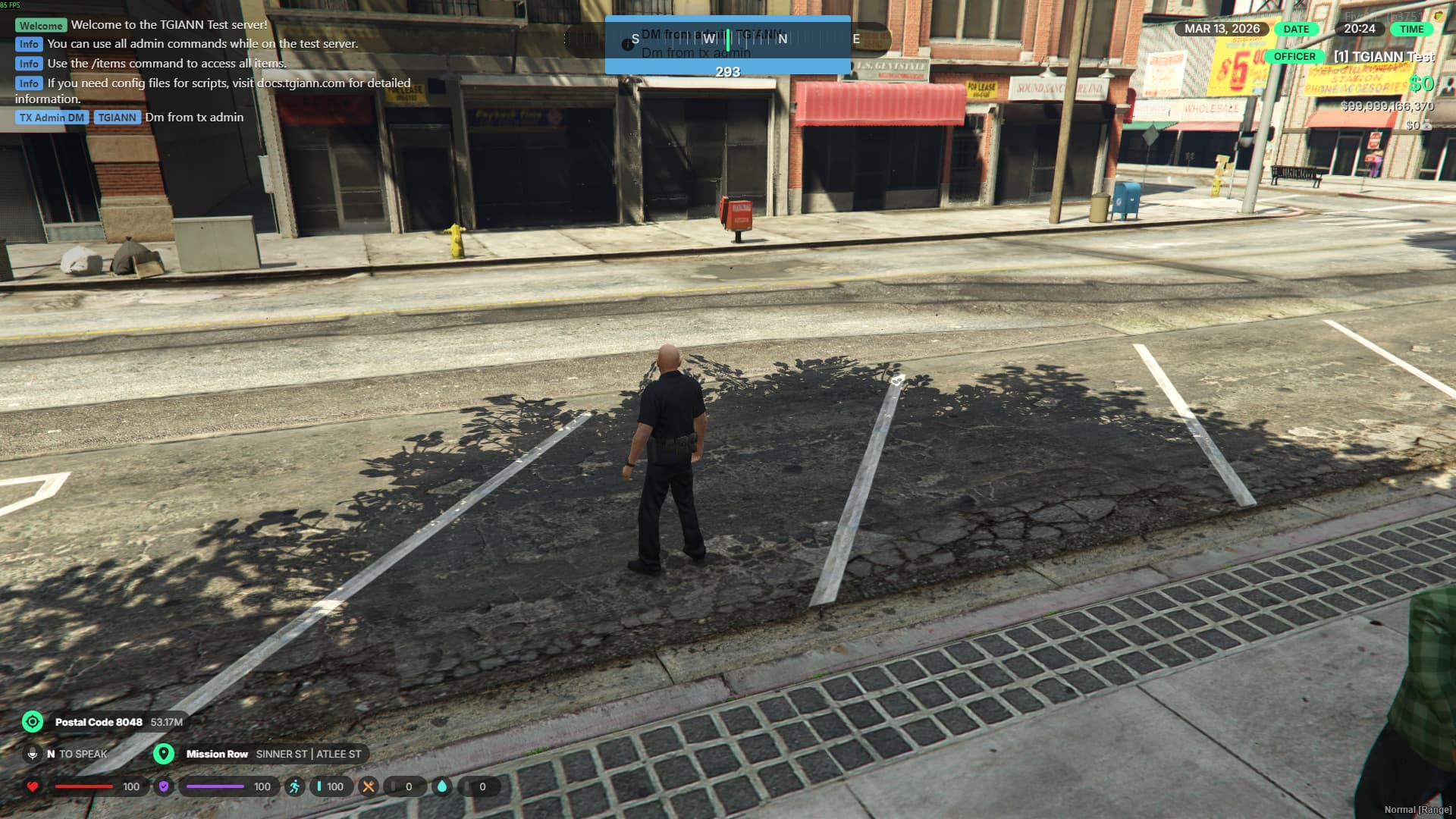
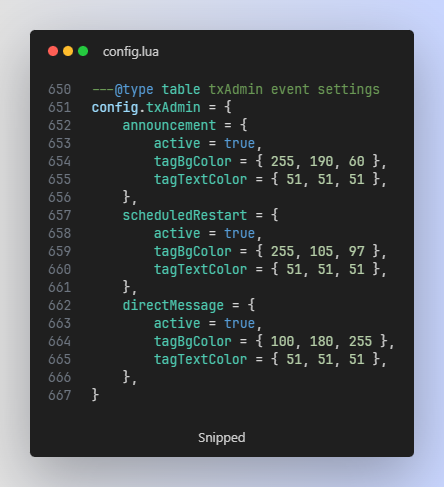
- Integrates with txAdmin to route system messages and announcements into the chat.
- Displays a 3-dot typing indicator above the player’s head when the chat box is open.
- View a list of nearby players directly when the chat is open.
- Easily toggle all existing features on or off through the config file.
Configuration File
- disable any existing feature* directly through the config file.
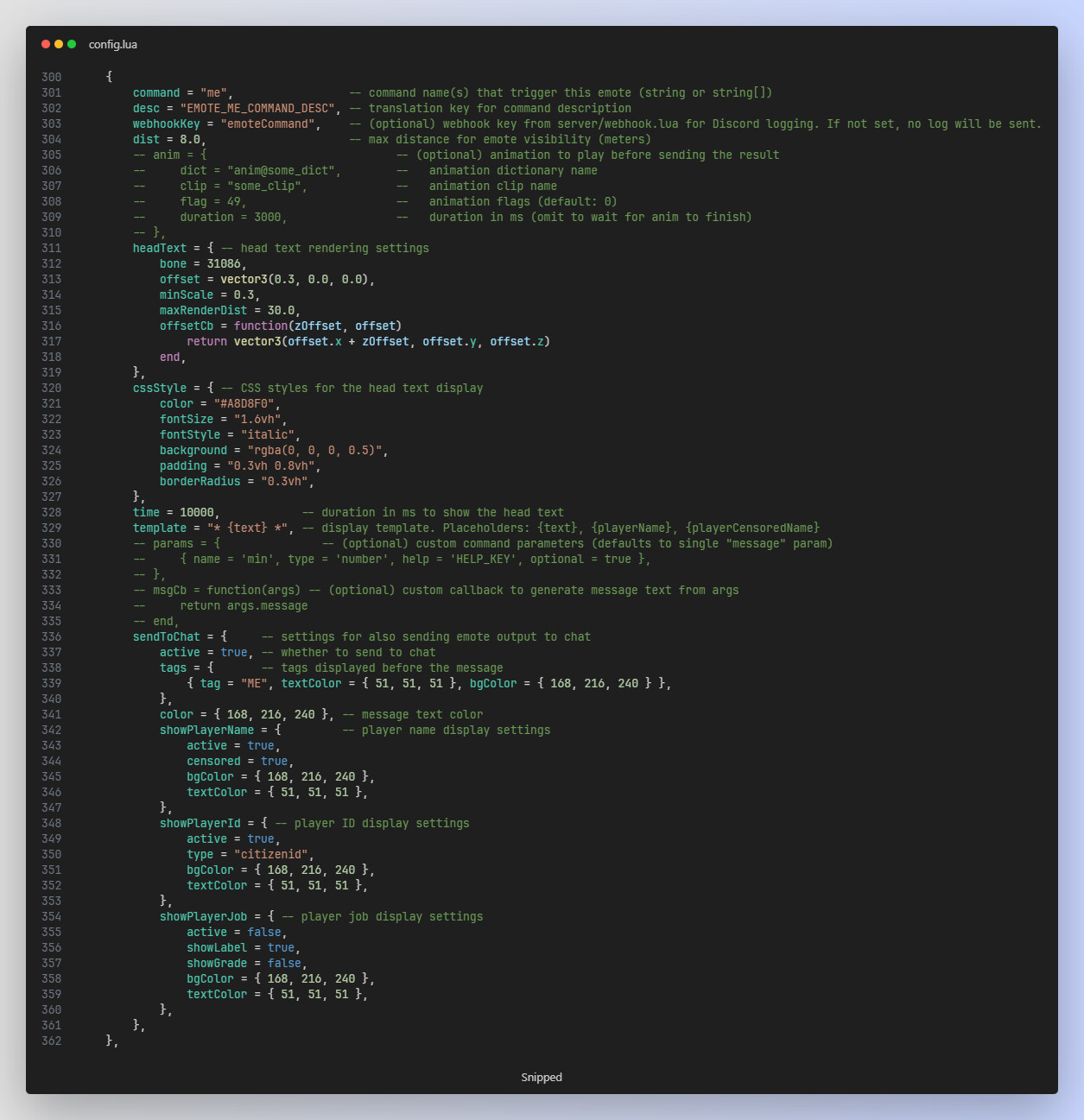
- Easily add custom additions to various settings (e.g., creating additional custom commands for the Config.EmoteCommands setting).
Message Customization
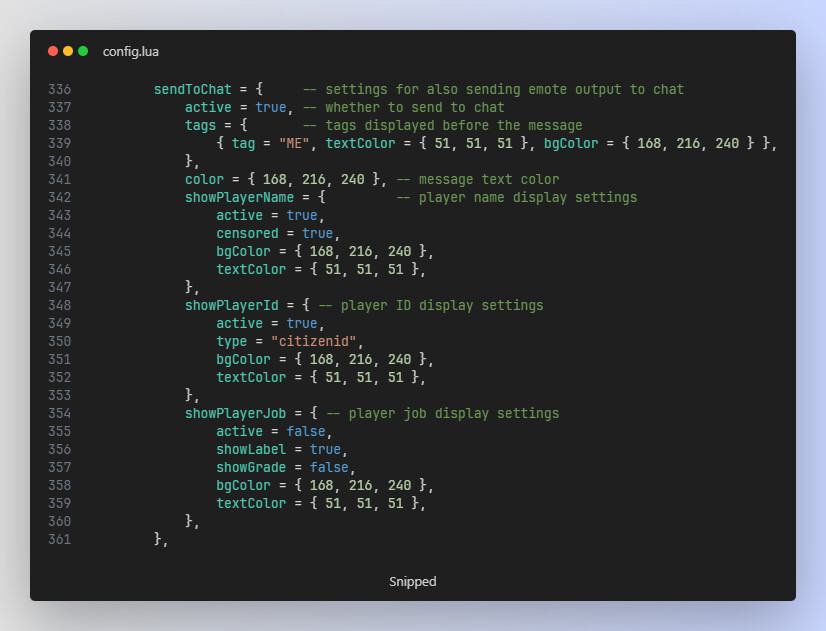
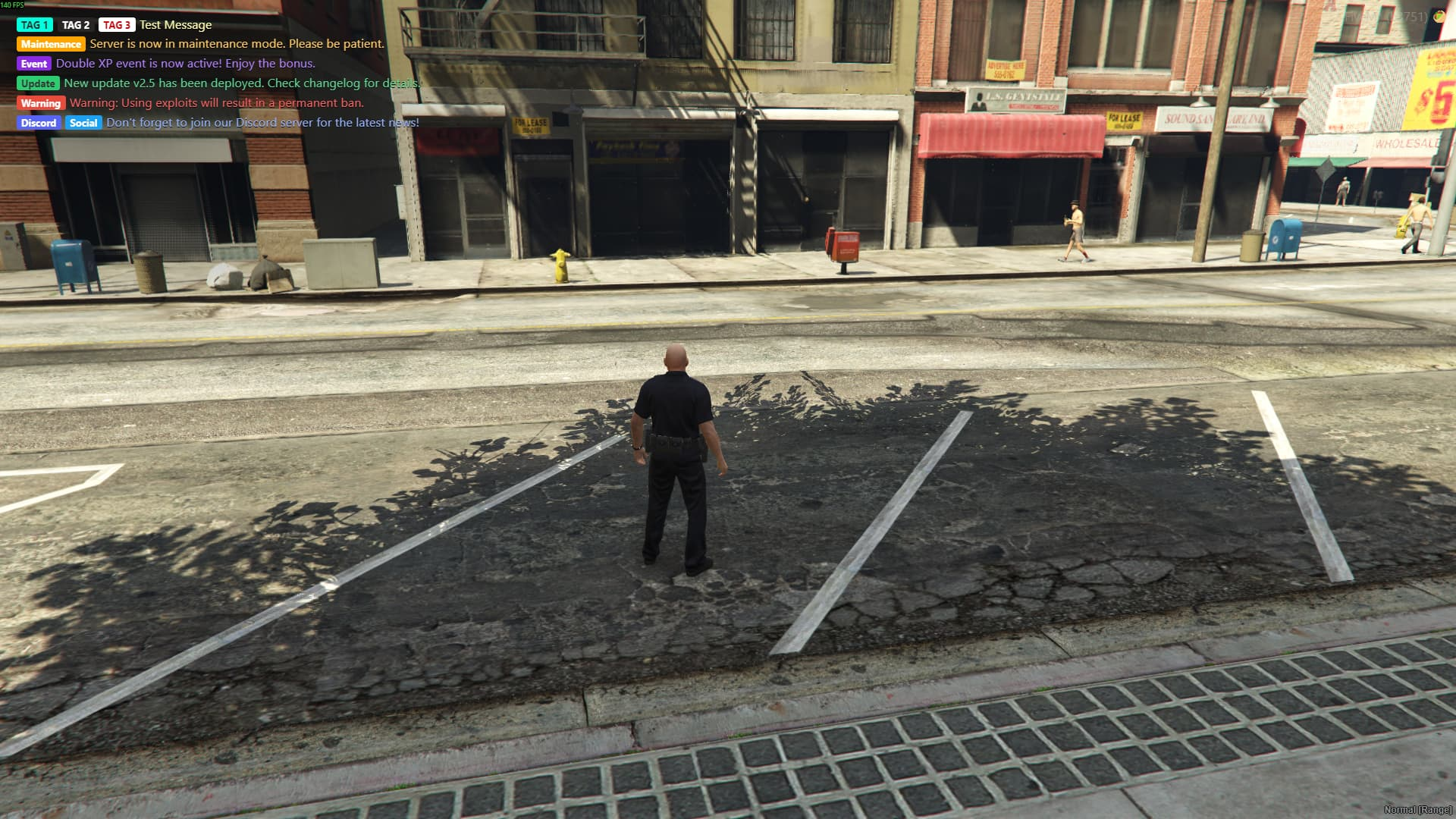
- Fully customize the tag background color, tag text color, and the chat text color exactly as you wish.
- You can set these colors either through the config settings or dynamically when using the script’s exports and events.
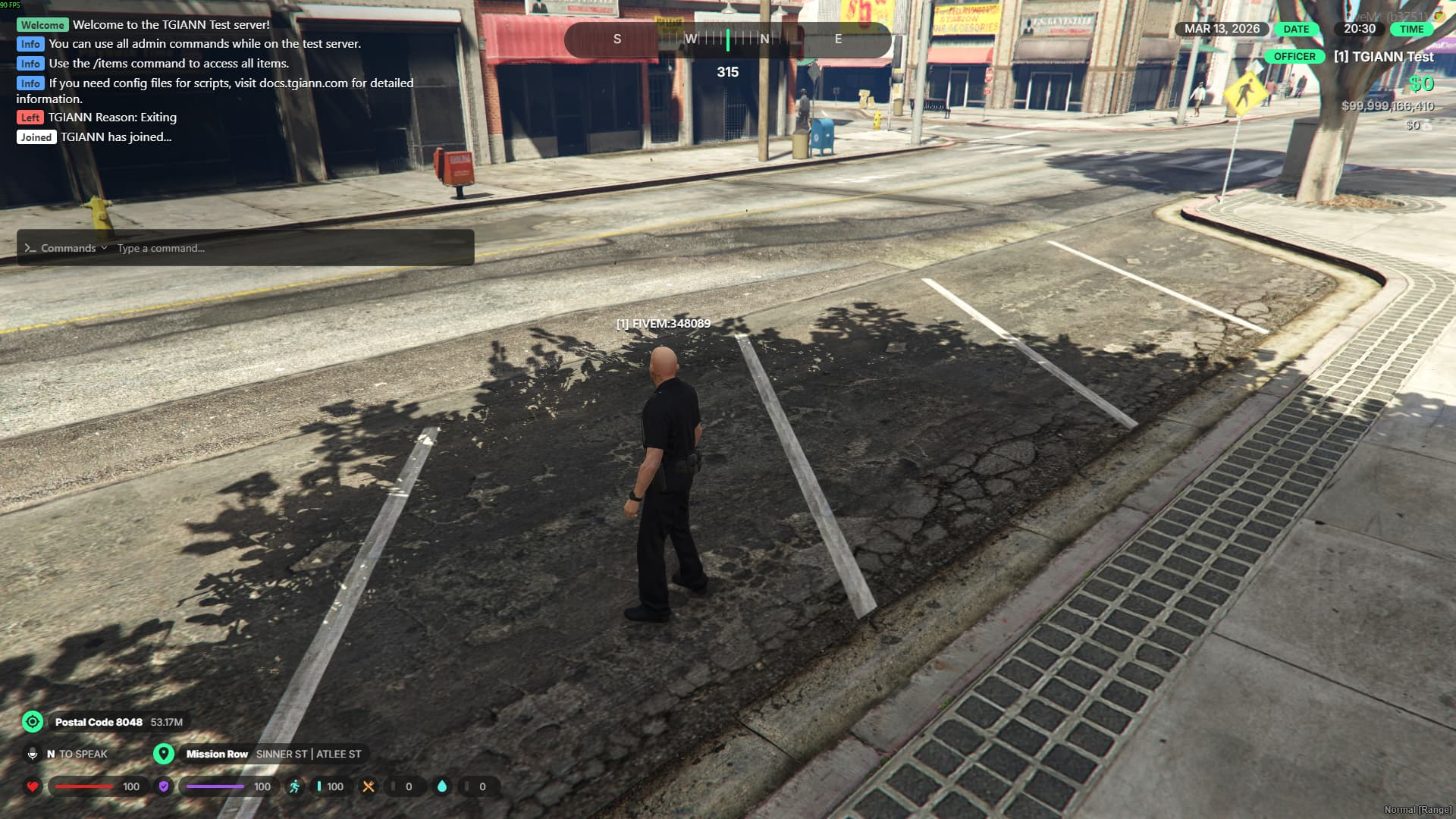
Player Join & Leave Messages
- Automatically broadcast a message in the chat whenever a player joins or disconnects from the server.
- Just like other settings, this can be easily enabled or disabled through the config file.
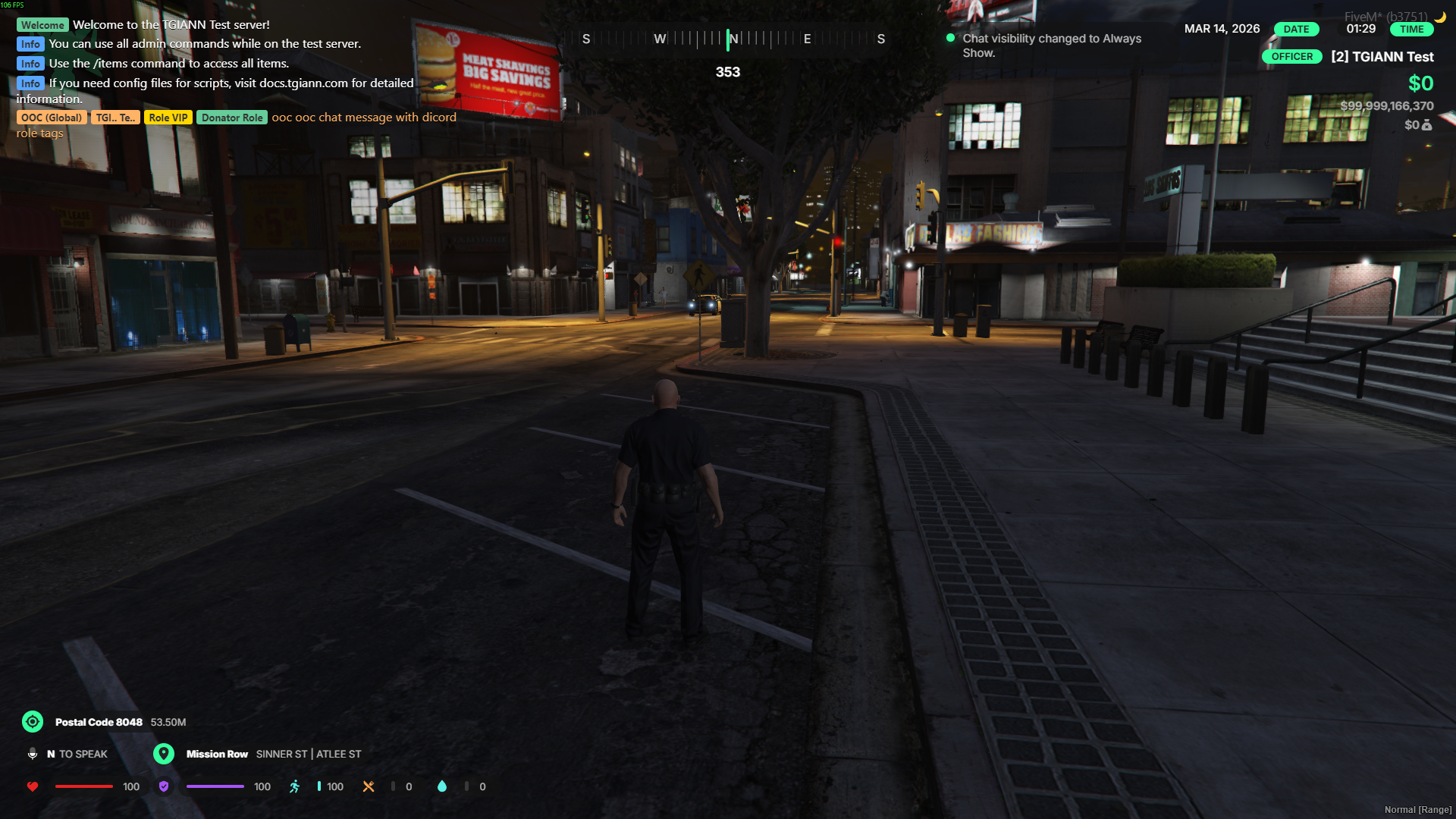
Chat Visibility
- Features 3 different chat modes:
- Always Show: The chat remains visible at all times.
- Show on Message: The chat appears only when a new message is received (and hides after a set duration).
- Always Hidden: The chat remains completely hidden.
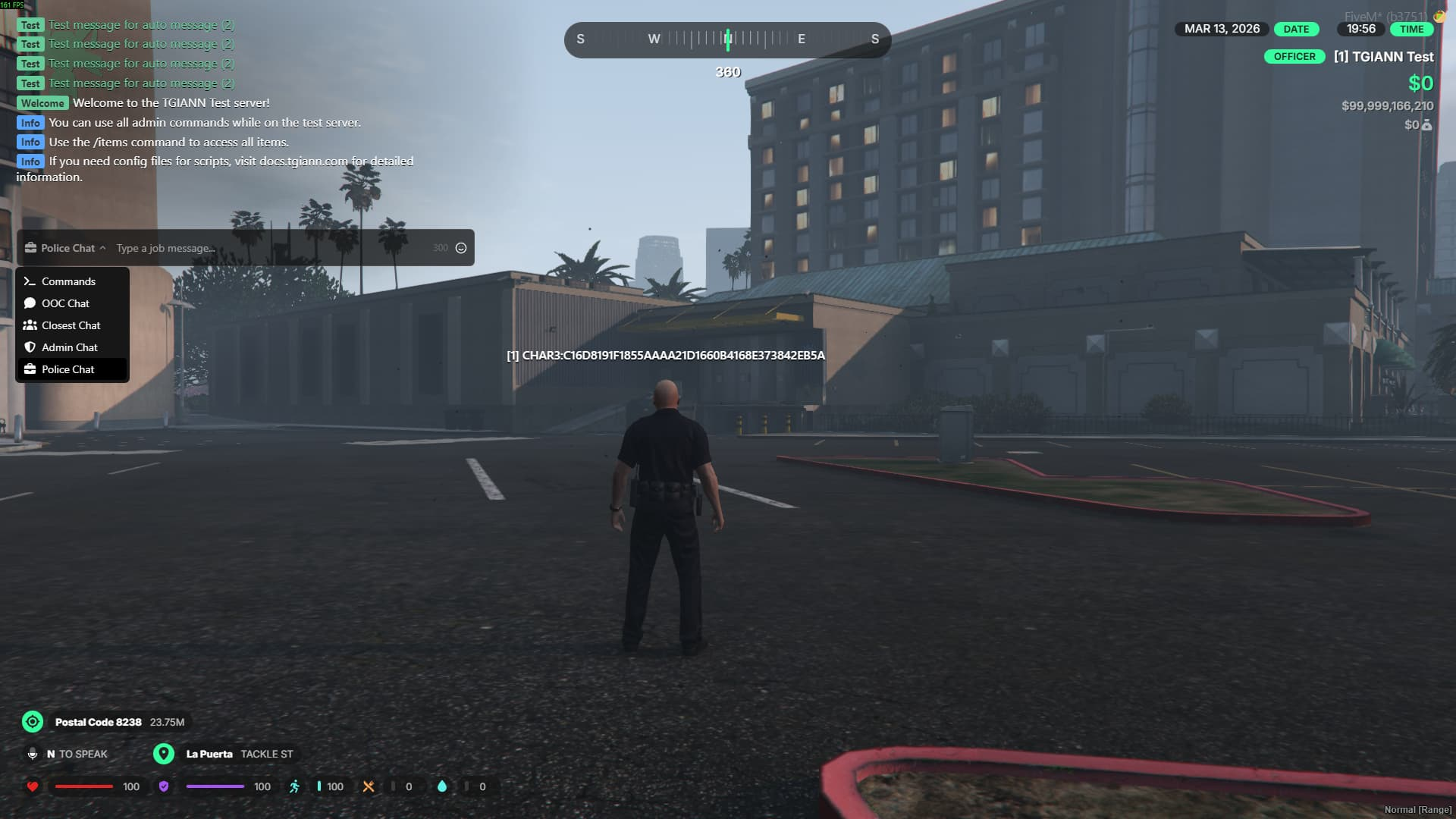
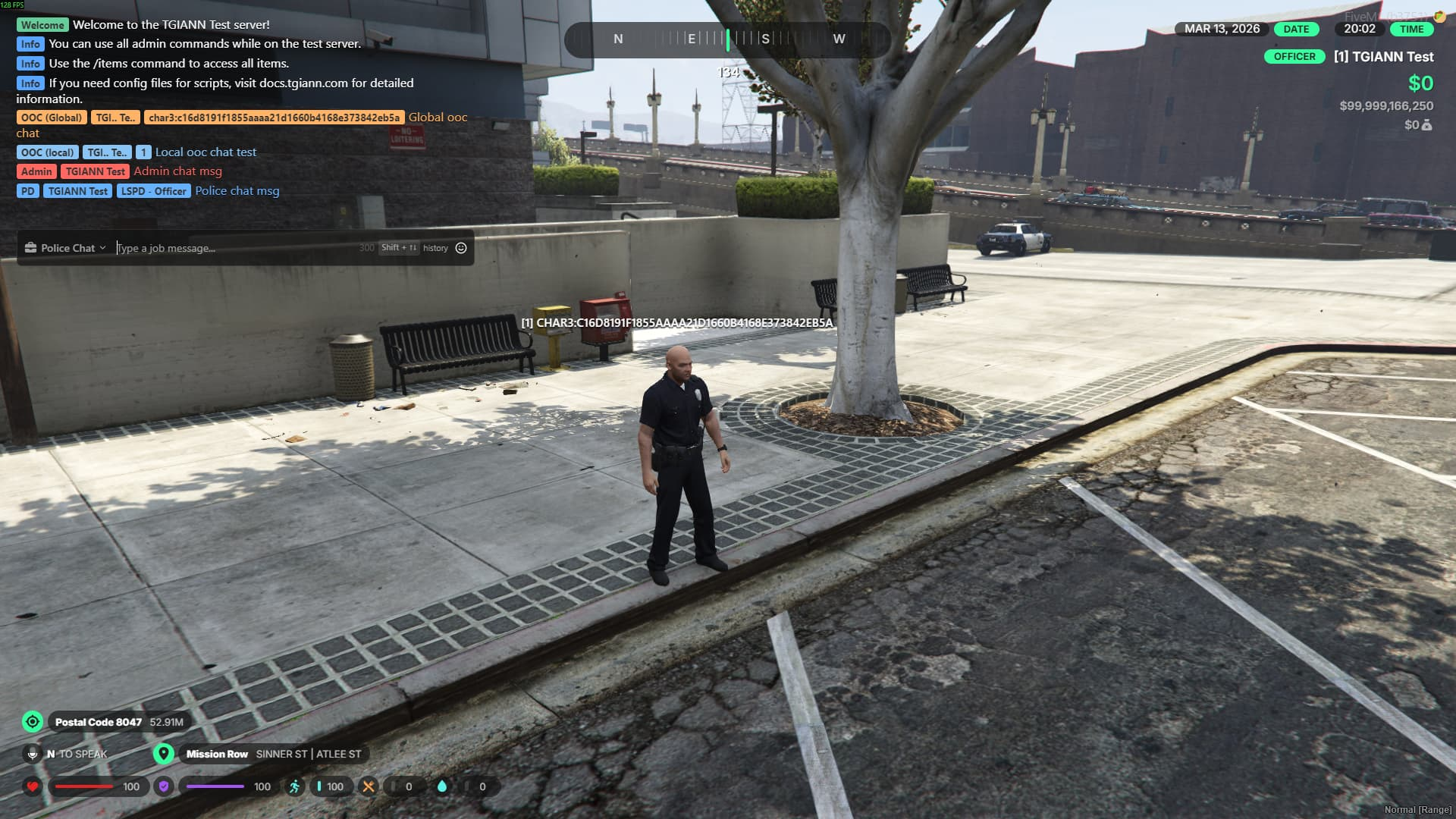
Chat Channels
- Customize each channel individually exactly as you wish.
- Configure how player informationis displayed within the channels. You can choose to show:
- Player Name: Display the full name or partially censor it.
- Player ID: Display the Server ID or CitizenID (Identifier for ESX).
- Job Information: Show the player’s job name and grade.
- Discord Role Names: Show the player's discord role names
- Includes two distinct OOC channels: Global OOC and Closest (Proximity) OOC.
- Admin Channels: Exclusive channels where only admins can see and chat with each other.
- Job Channels: Dedicated channels for specified jobs to communicate internally.
- Gang Channels (QB Only): Dedicated channels for specified gangs to communicate internally.
- These are included as default channels. You can easily add custom channels or delete existing ones directly from the config file.
/me, /do and Similar Commands
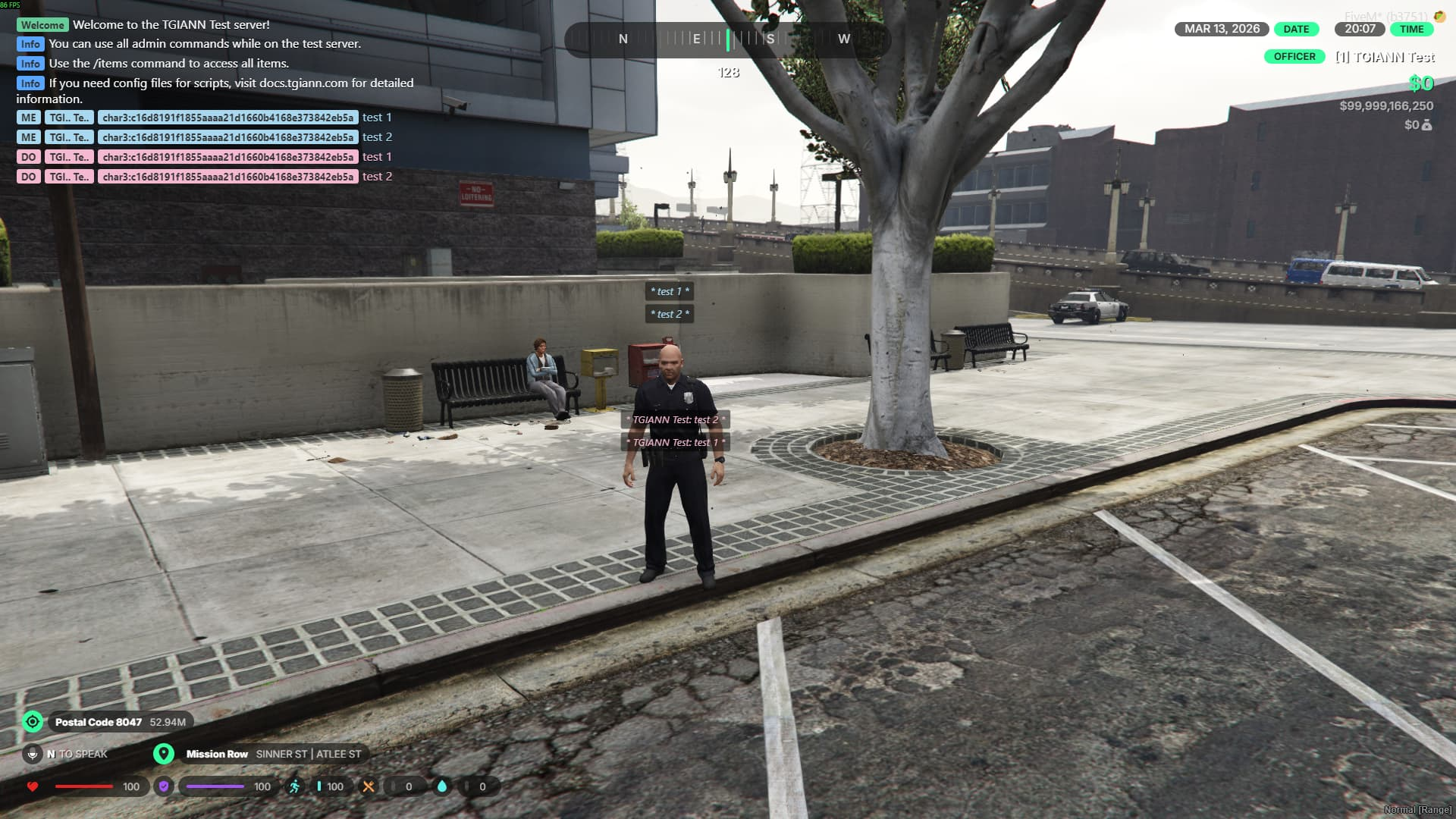
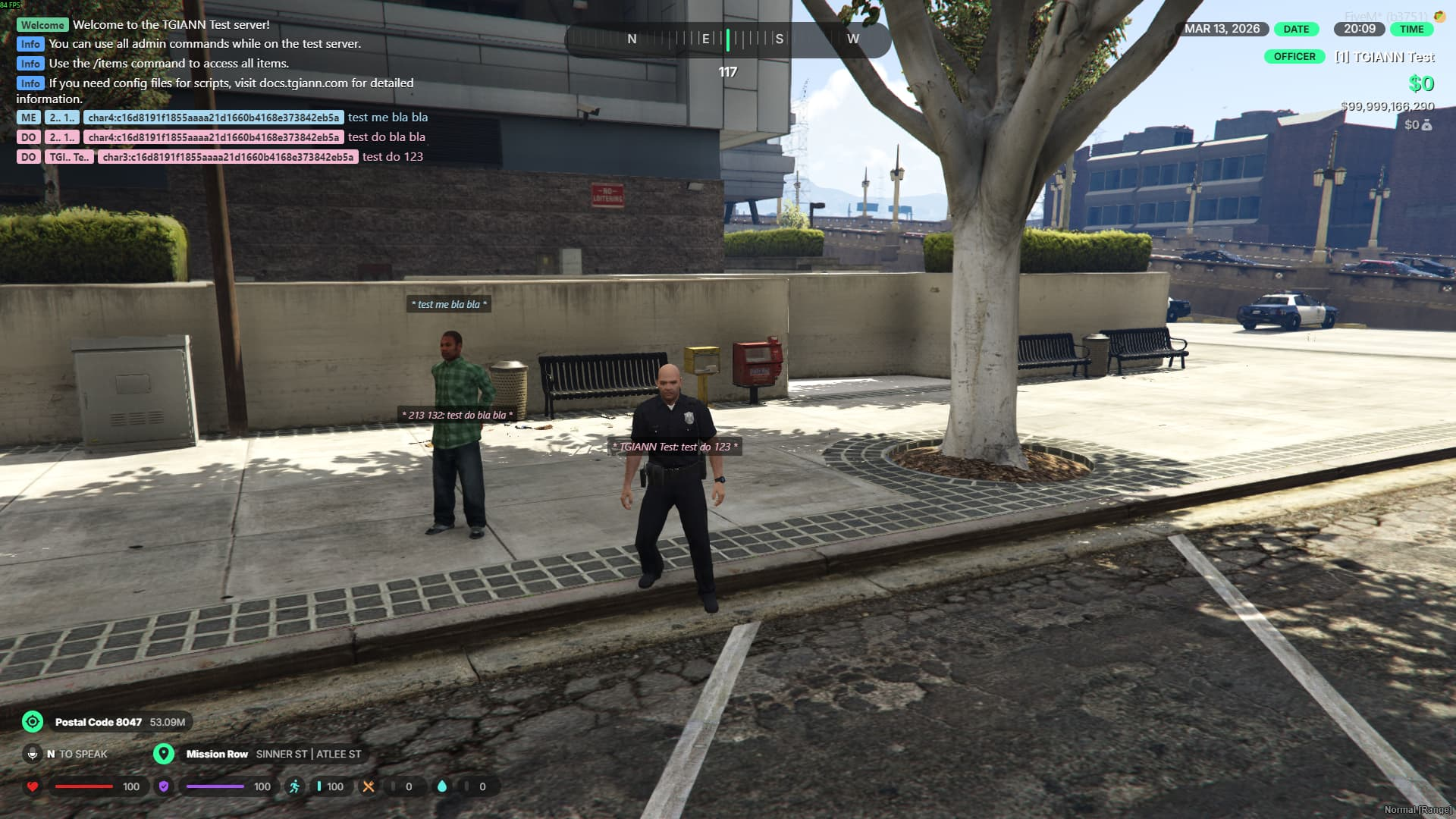
- When using these types of commands, the message is displayed both in the chat and above the player’s head.
- Each command can be fully customized individually.
- Just like other config settings, you can easily configure them to display the player’s name, ID, and other details in the chat.
- You can configure where the text appears on the player model for each command (e.g., setting
/memessages to appear above the head, while/domessages appear on the torso).
See Nearby Player IDs
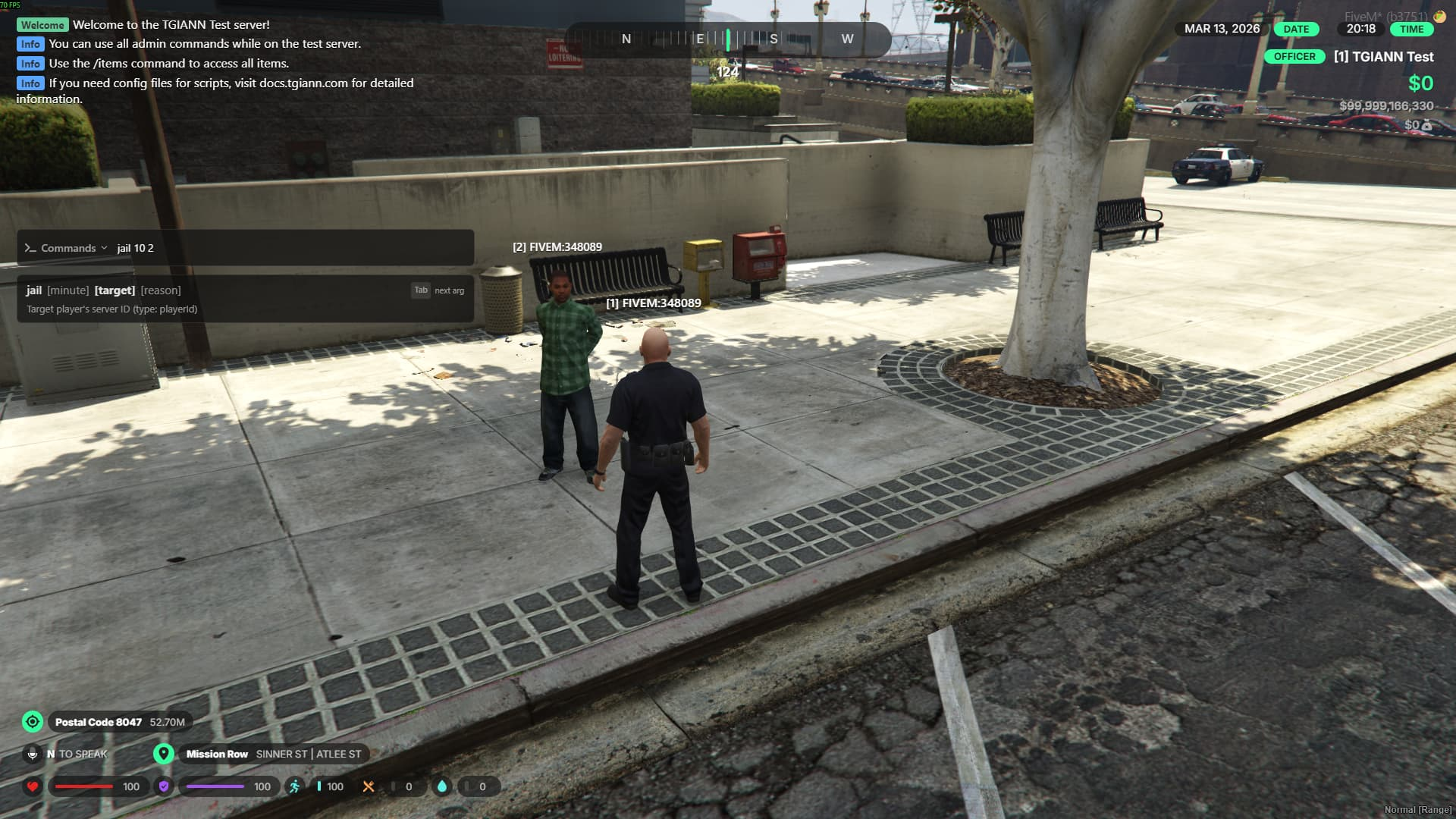
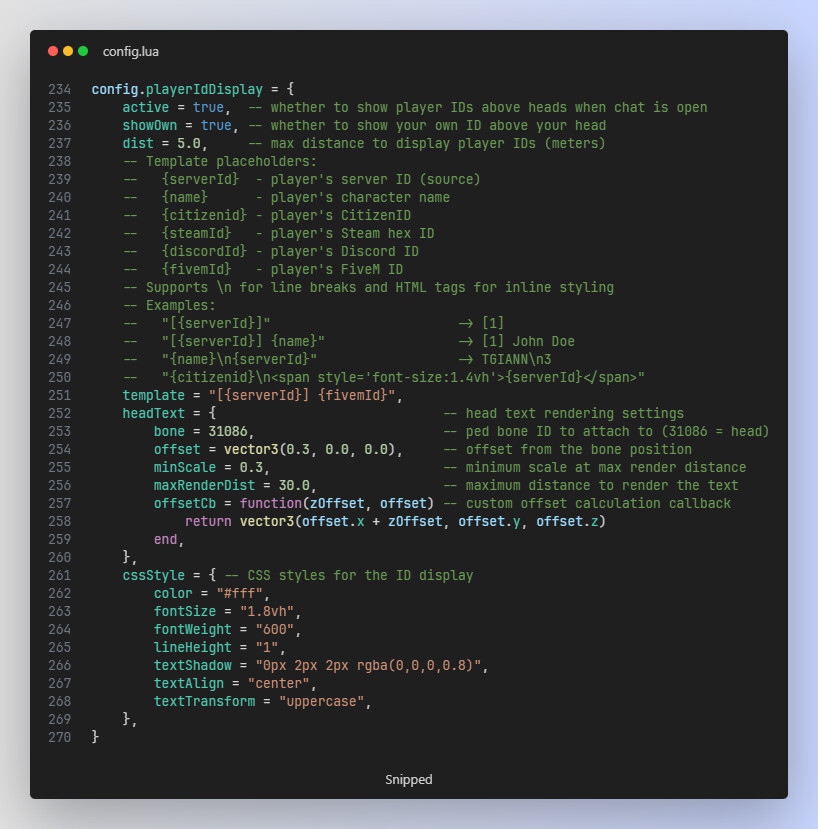
- When the chat is open, you can view the ID and other customizable information above nearby players’ heads, based on the template defined in the config.
- This makes it easy to identify a player’s ID before executing commands on them.
Chat Usage Indicator
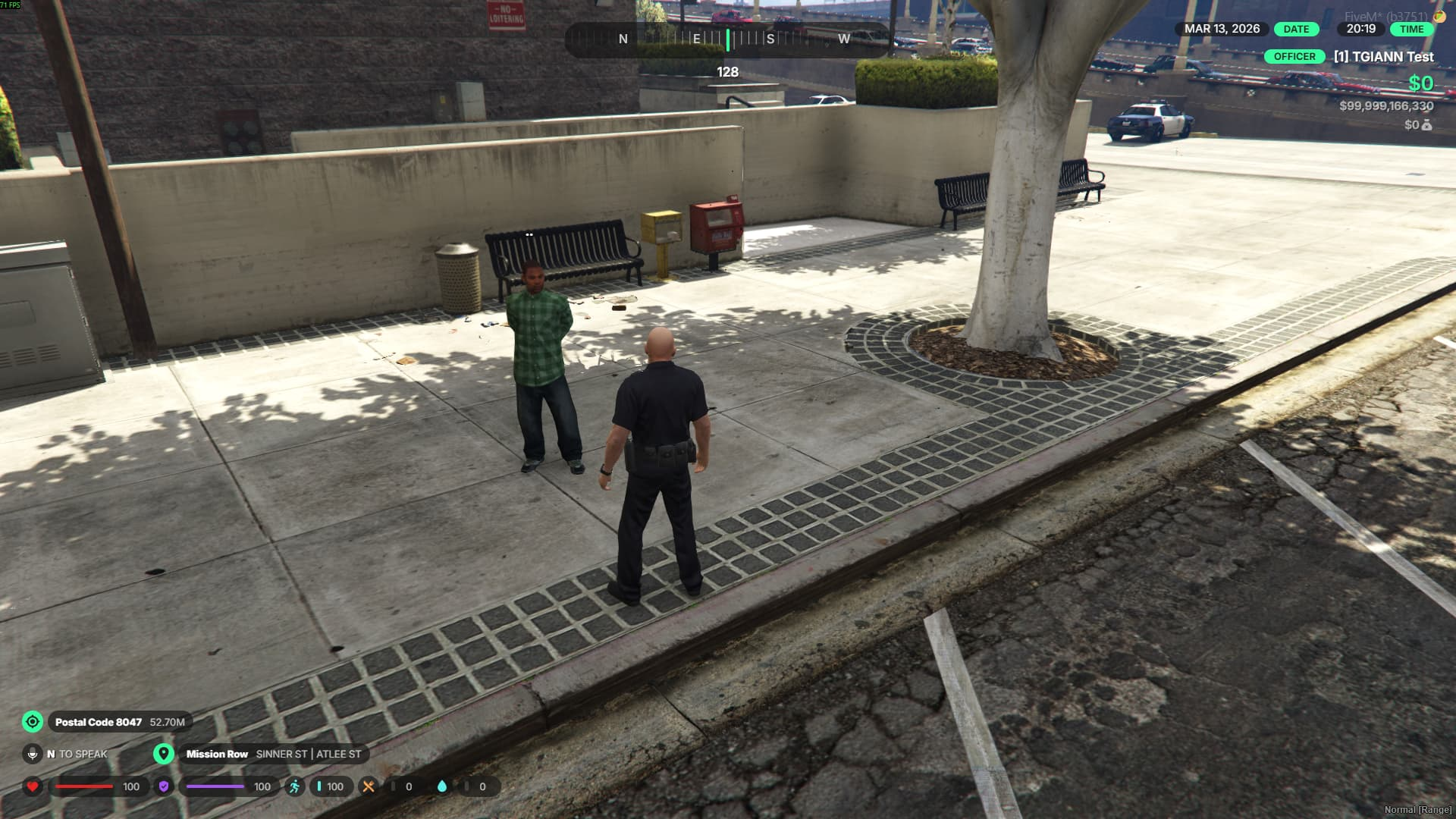
- Displays an indicator above a player’s head whenever they open the chat.
- Allows other players to clearly see that the person is actively using the chat.
- Prevents confusion during roleplay; if a player takes a while to type a detailed /me or /do command, others will know they are typing rather than just standing AFK.
Discord Message Integration to In-Game Chat
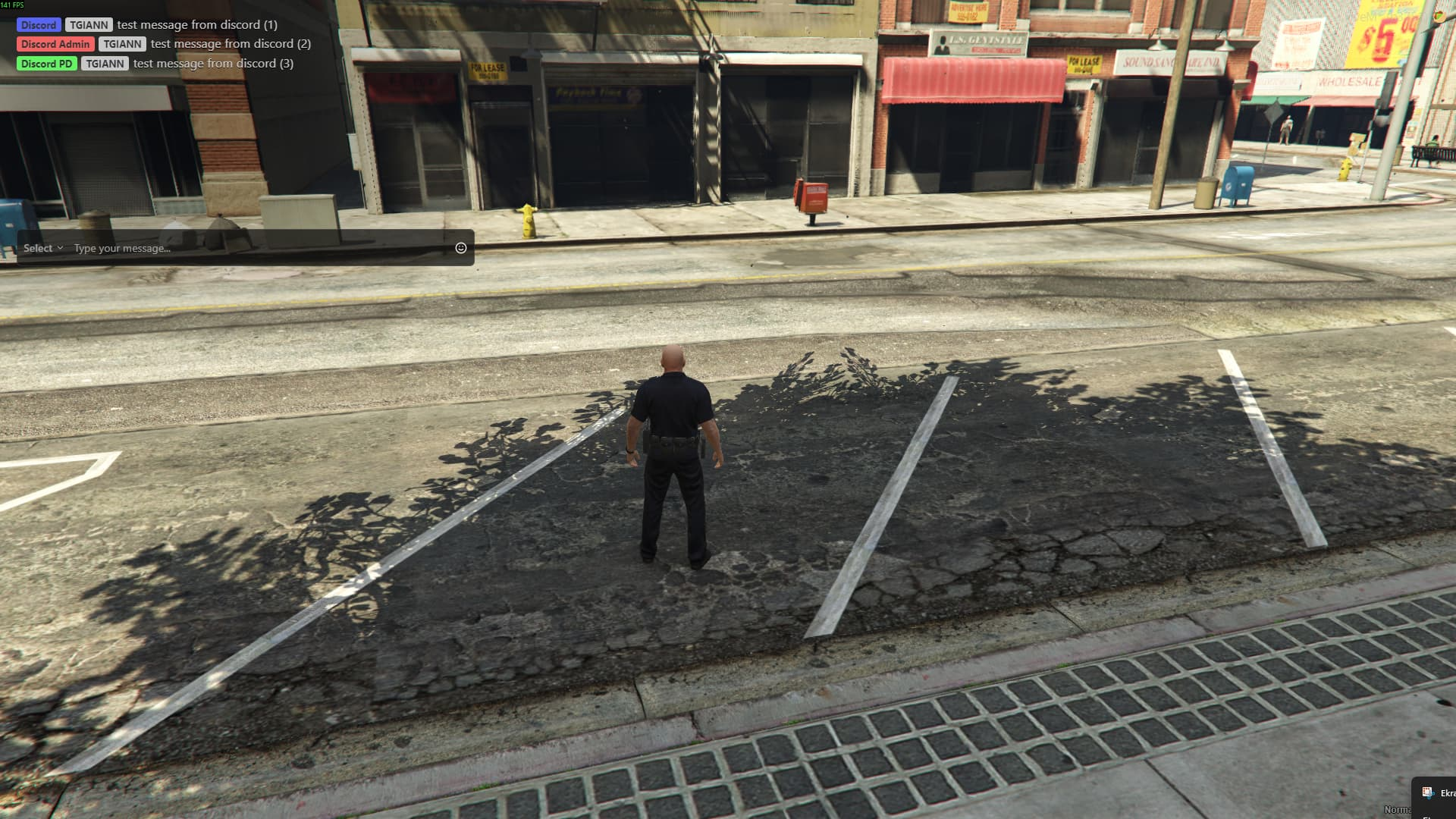
- You can route messages from multiple Discord channels to appear in-game.
- For example, if you have a police Discord channel, you can set it so that only players with the police job see those messages in-game. Alternatively, an OOC Discord channel can be visible to all players, or an Admin Discord channel can be restricted so only in-game admins see the messages.
- In short, you can configure each Discord channel to be visible only to specific jobs, admins, or groups exactly as you wish.
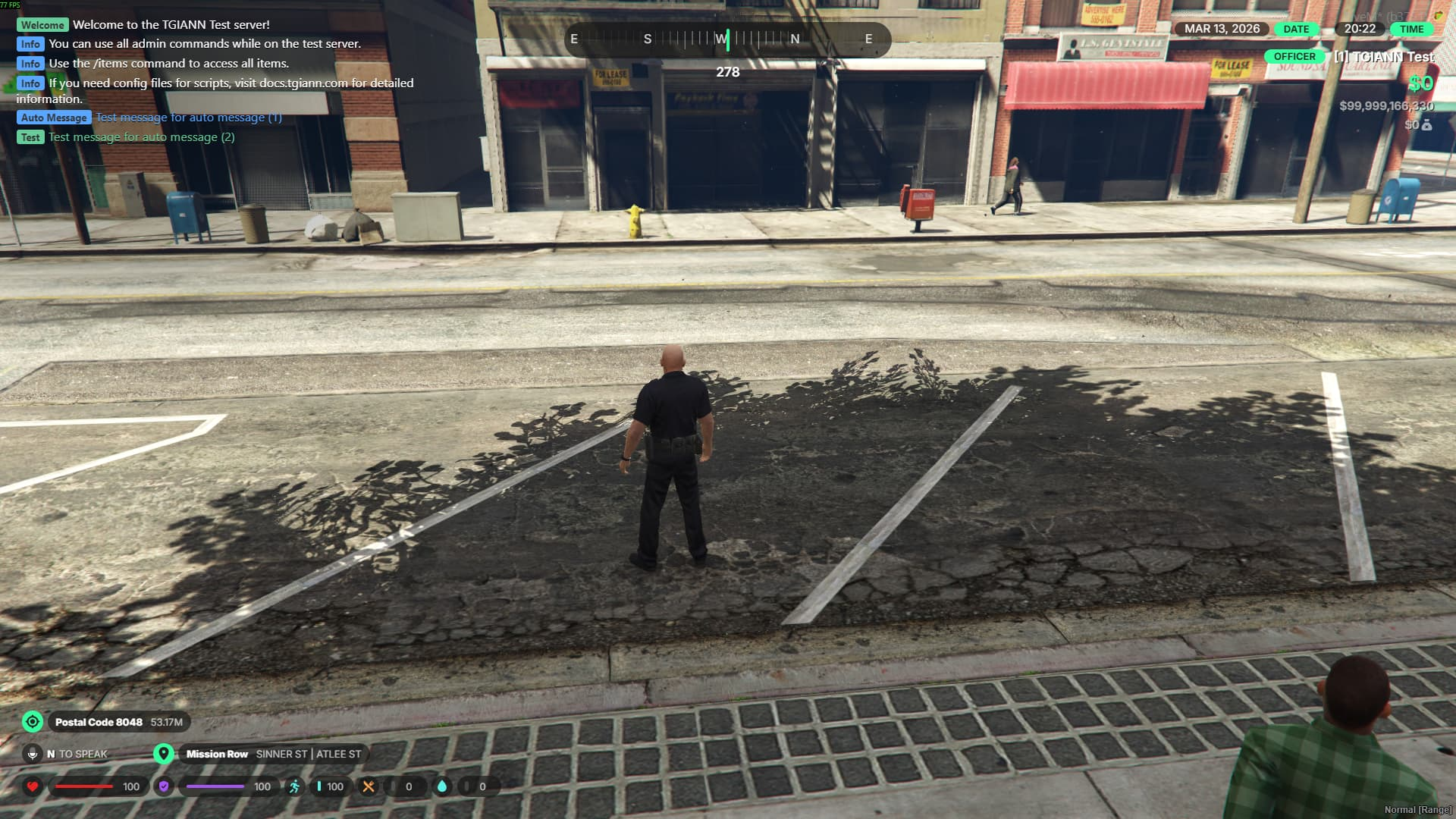
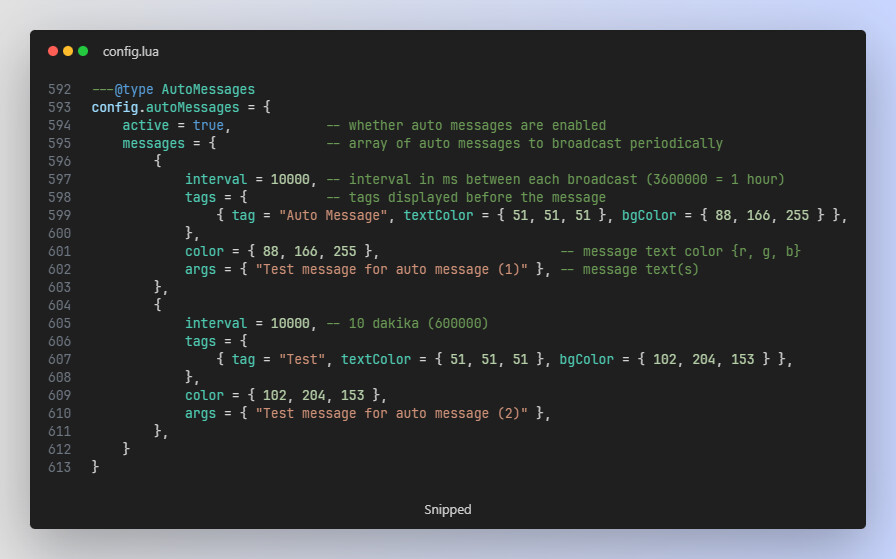
Automated Messages
- Broadcast automated messages in the chat at specific time intervals.
- Fully customize the timer, content, and other details for each individual message exactly as you wish.
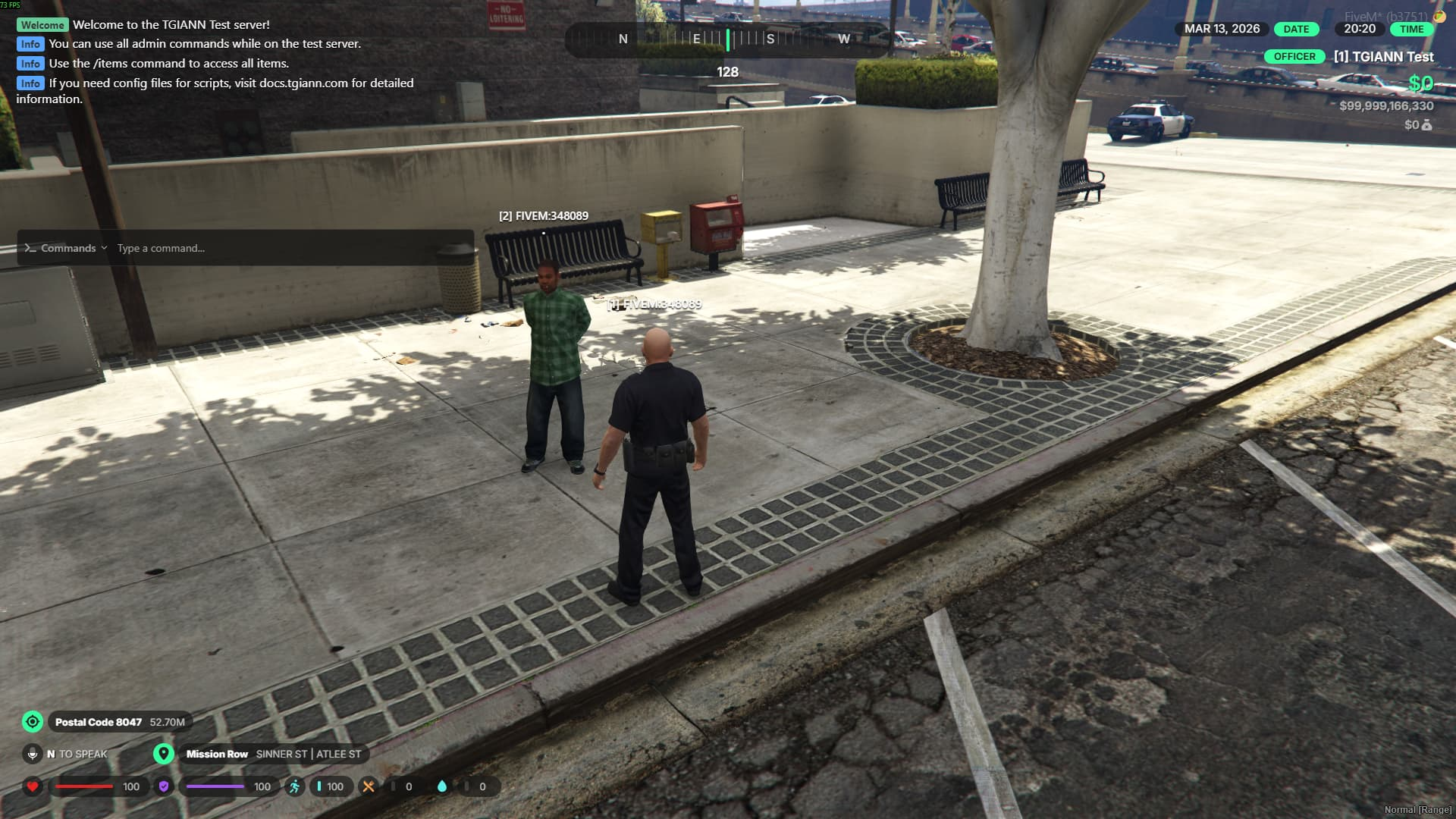
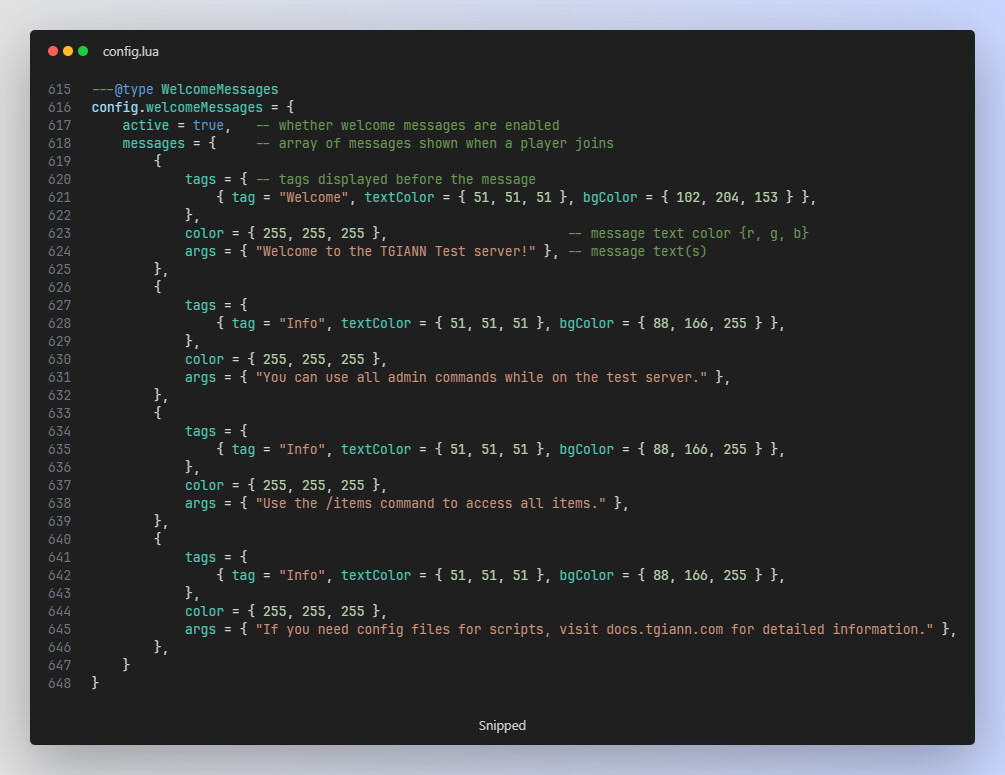
Welcome Message
- Automatically send direct chat messages to a player as soon as they join the server.
txAdmin Messages
- Display txAdmin messages directly in the in-game chat.
- If a player is AFK when a txAdmin message is sent, they can still read it later since the message remains in the chat history.
Discord Logs
- View all written messages and commands as logs in a dedicated Discord channel.
Requirements
- tgiann-core (free)
- ox_lib